Managing and monitoring BaaS backup plans
The Backup plans section contains the configured plans and provides actions for editing, running, stopping, and deleting them. The Tasks running and Task history tabs show the current and completed operations.
Editing a backup plan
Open Backup (BaaS) → Backup plans.
In the required plan’s Actions menu, select Edit.
Change the name, description, enabled state, selected volumes, schedule, or number of restore points.
Click Update plan.

The storage location of an existing plan cannot be changed. To move a volume to another backup storage, delete its existing backups and then add the volume to a plan that uses the required storage.
Running a backup plan manually
Only enabled plans can run automatically or manually.
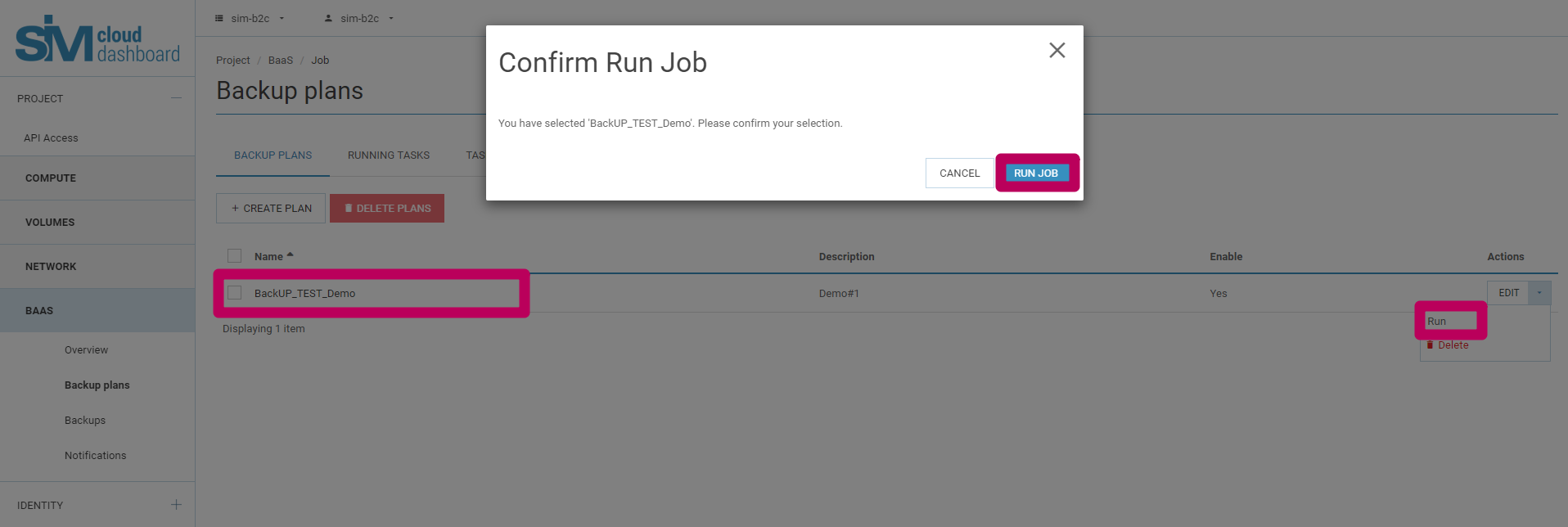
In the plan’s Actions menu, select Execute.
Review the confirmation dialog.
Click Execute task.
Scheduled plans run at the configured UTC time.
Stopping a running plan
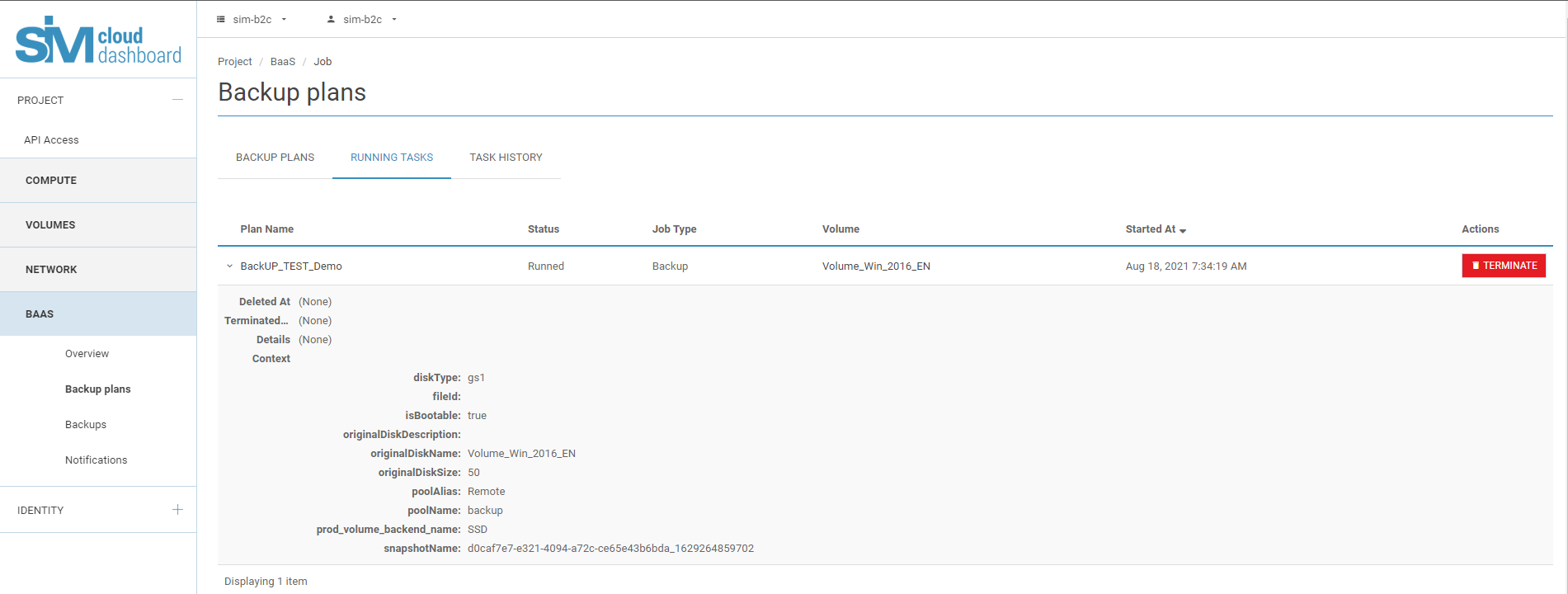
Open Tasks running, find the required operation, and click Stop.
Stopping a plan prevents queued volume tasks from starting. A volume task that is already running continues until it completes. A stopped task cannot be resumed; run the backup plan again if another backup is required.
Deleting a backup plan
Select one or more plans and click Delete plans, or select Delete from a plan’s Actions menu.
Review the selected plan names in the confirmation dialog.
Click Delete plans.
Warning
Deleting a backup plan does not delete its existing restore points. The restore points remain available in the Backups section until they are explicitly deleted.
Monitoring tasks
Use Tasks running to view active backup and restore operations. The list shows the task name, status, type, volume, start time, and available actions.
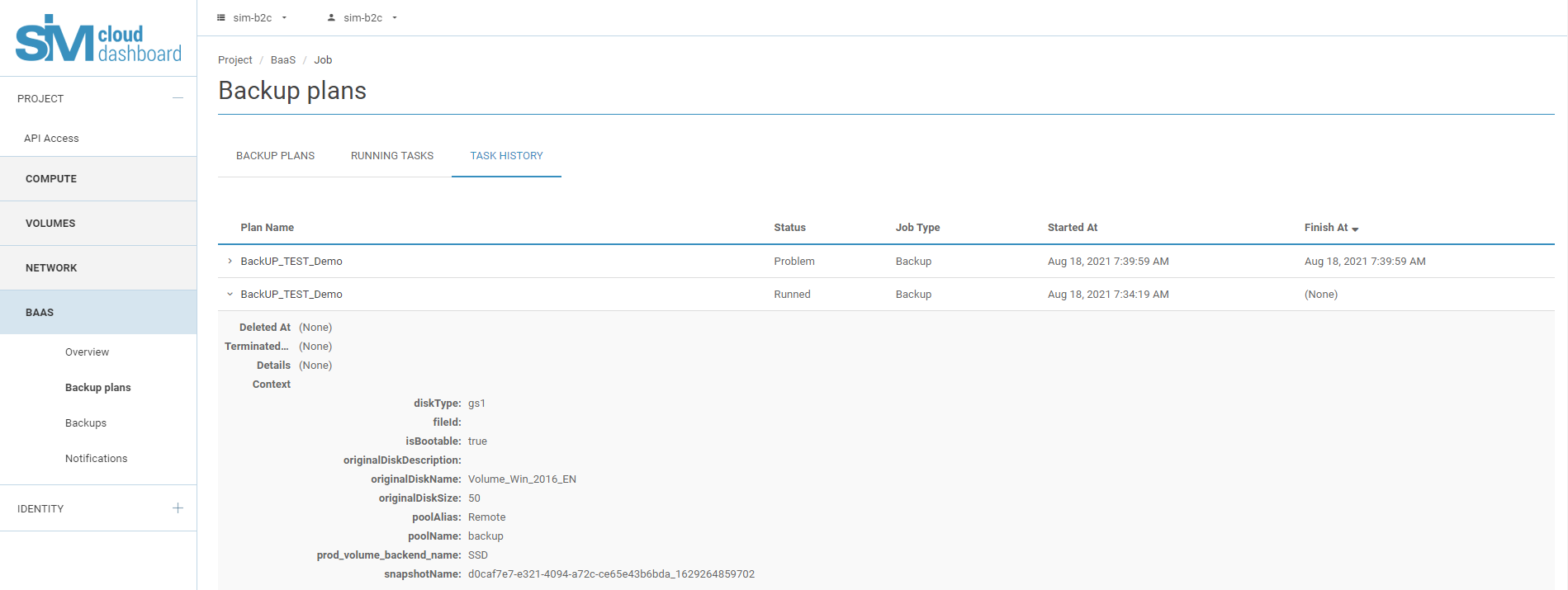
Use Task history to view completed, stopped, and failed operations. Open a task to review its status and diagnostic details.